You've probably wondered how to create, edit or delete a new user in Business Central. Today we want to show you exactly how to do this step by step in this How-To.
Create a new user:
To add new users in Microsoft Business Central, you need Admin rights. If you fulfill this requirement, it is recommended that you use the Global search with the keyword 'User' to the User administration to navigate.

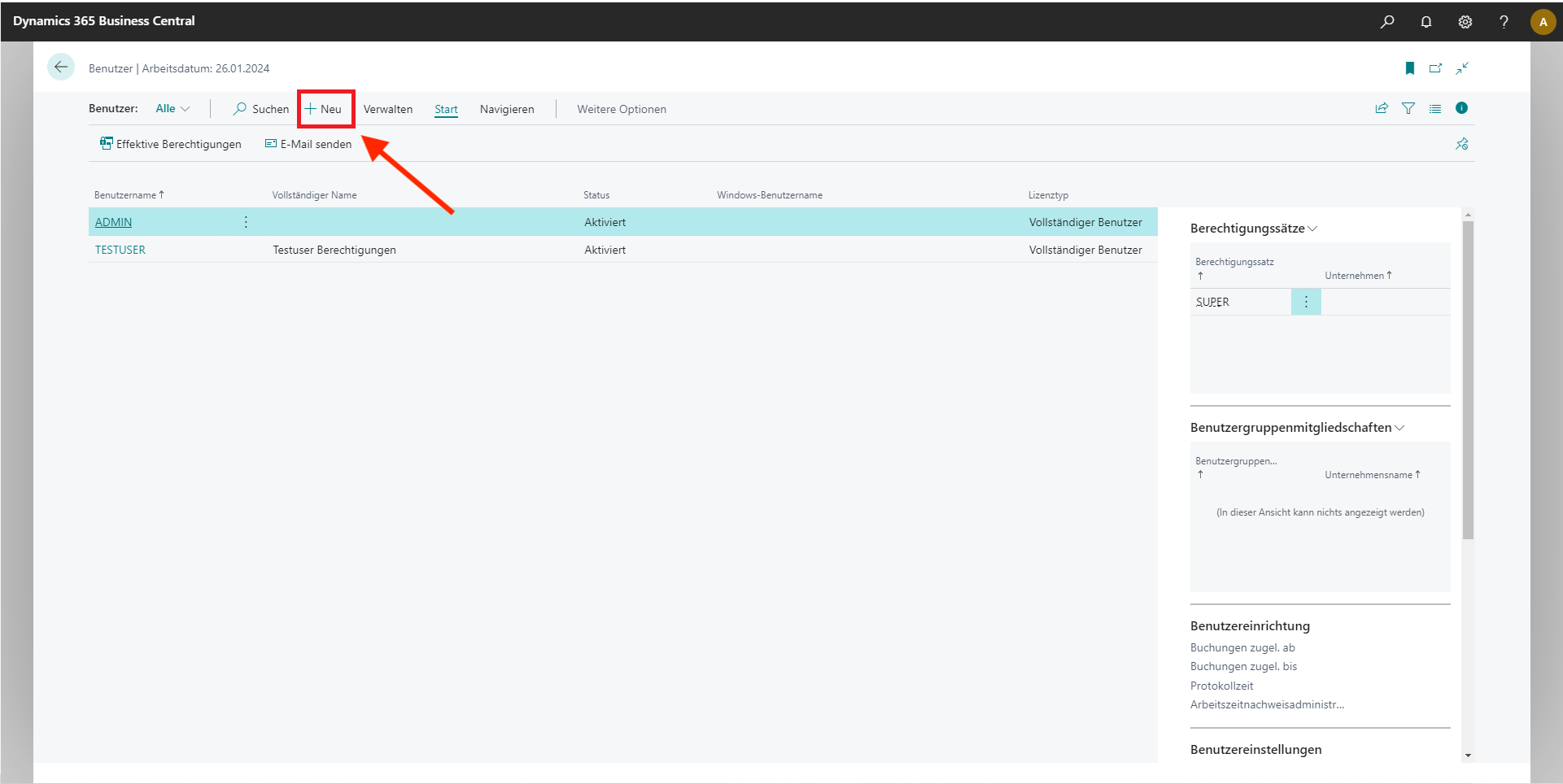
Here you can click on +Newto create a new user.
Enter master data:
This opens the User card. Here you then have the option of entering detailed data on the new user, such as Name, license type (Full User / Limited User, ...). In addition, you can also specify at this point which Registration method (authentication) the new user can log in. BC makes a rough distinction between the following variants (depending on the Cloud/onPrem installation type):
Windows authentication (Active Directory or Azure Active Directory): Users log in to the domain or Office 365 and are then automatically logged in to Business Central (single sign-on). Users can also be imported from the directory service.
NavUserPassword: Users authenticate themselves directly in BC (independent of Windows login)
However, it is more likely that you have entered the data, such as user name, name and license type, enter manually. Under Status you have the option of temporarily deactivating the user to give another user temporary access (if you have too few licenses) or, of course, to deactivate the user permanently if the user is no longer required. You can also create a Expiration date after which the user is no longer authorized to log on to the Windows client.

A little further down, under Business Central password authentication, you can check the box next to "The user must..." set. The user must then enter the change his password after the first login.
Roles and authorizations:
Now you need to assign roles or authorizations to the user. To do this, simply scroll further down in the user card and first reach the item User memberships. Here you can choose from a variety of predefined roles, such as the Accountant, which in turn is linked to specific predefined user rights. If you select the The company in a line, the assignment applies to all clients. You can of course change the assignment under + New You can also define new user memberships yourself or assign your own user rights under User authorization records set.

Now simply click on the arrow at the top left. You should see the newly created user there.
Edit master data
To edit the master data of a user, go back to the User administration and click on the name of the displayed user. This opens the User card and you can adjust the master data.
Delete user
In addition to adding users, you can of course also add users delete. To do this, go to the User administration and click on the Three-point menu. Here you will find the selection 'Delete'.

Business Central offers you a comprehensive Authorization system. It is therefore best to try creating a new user with specific authorizations yourself. If you have any further questions, please contact us!
Tel: +49 (89) 21 111 848
E-Mail: vertrieb@br-ag.com