Dynamics 365 Business Central functions and operating elements | Asset accounting
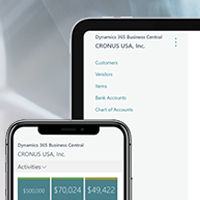
Business Central. With the asset function in Business Central, you have various options for managing your assets. You get an overview of the correct periodic depreciation, maintenance costs and insurance management and can also post asset transactions and generate various reports and statistics. An important point before you start managing assets in Business Central is to set up default values, asset postings, posting groups, distribution keys, book sheets and posting types. Below you will find an excerpt of the tasks that you can perform with the Asset Accounting module in Business Central.
Working with Business Central - Productivity tips

To help you work even more effectively with Business Central, we have put together an overview of important productivity tips and helpful keyboard shortcuts.
This allows you to use Business Central even more productively in your company and speed up operational processes.
How-to series: Create credit memo in Business Central

Sales credit note / Correcting or canceling a booked sales invoice In our last part of the How-to series, we would like to show you how to correct or cancel a booked sales invoice in Business Central, as well as how to create a sales credit note. If the sales invoice has already been partially or fully paid, you must create the sales credit note manually. Canceling a posted sales invoice: [...]
How-to series: Creating orders in Dynamics 365 Business Central
In our March newsletter, we already reported on how you can create a sales offer in Business Central in our How-to series.
The sales offer can be used as a preliminary draft of a sales order in which item descriptions, the price and other sales conditions are defined.
In today's How-to series, we would like to explain how to create a new sales order and how to create a sales order from an existing offer.
How-to: Create sales offers in Dynamics 365 Business Central
In our January newsletter, we explained how you can use sales opportunities in Dynamics 365 Business Central. Here we show you how you can continue the sales process and easily create a quote from an opportunity.
A sales quotation can be used as a preliminary draft of a sales order, specifying item descriptions, price and other terms of sale. It does not require existing debtor information and can be converted into a sales order or archived for future transactions.
How-to: Sending receipts by e-mail in Dynamics 365 Business Central
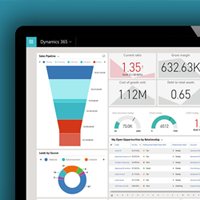
To simplify processes in the area of finance and accounting, Dynamics 365 Business Central offers the function of sending invoices and credit notes electronically in PEPPOL format.
An already configured document exchange service is included in Business Central and can be set up for your client.
A sales invoice in PEPPOL format is sent via the "Post and send" dialog box under "Electronic receipt".
You can also maintain the customer's standard document sending profile here after setting up the following master data:
How-To BC: Opportunities in Dynamics 365 Business Central
Business Central offers the possibility of using the marketing and sales management features to support the management and execution of sales activities. Business Central has CRM functionalities.
Sales process for sales opportunities and process stages
Before opportunity management can be used, the sales processes and sales process stages must be set up.
The sales process comprises various steps, from making contact to closing the sale. Each of the different stages can have specific requirements that must be met in order to take a sales opportunity to the next stage. You can also decide to skip certain stages.
"Performance feedback on projects" in Dynamics 365 BC - Part 3: Invoicing

In our series "Performance feedback on projects" in Dynamics 365 Business Central, we have already shown you how to create projects and confirm hours via timesheets. Today we would like to take a closer look at the invoicing of projects. Once the services have been approved in the timesheets, they can be booked in the project book sheet. To do this, we go to Business Central under "Projects" [...]
"Performance feedback on projects" in Dynamics 365 BC - Part 2: Performance feedback via timesheets

Today we would like to show you how performance feedback on projects works in Dynamics 365 Business Central. Performance on projects can be recorded in the so-called "timesheets".
In order to be able to use the timesheets, similar to timesheets, you must first define an admin and a timesheet approver.
"Performance feedback on projects" in Dynamics 365 BC - Part 1: Project creation
To create a new project, you must first create a project card with integrated project tasks and project plan lines.
In the project card, for example, you can create the project description, the customer with the corresponding invoice address (if you want to invoice directly from the project later) or the project manager.