Correct or cancel sales credit note / posted sales invoice
In our last part of the How-to series, we would like to show you how to correct or cancel a posted sales invoice in Business Central, as well as how to create a sales credit note.
If the sales invoice has already been partially or fully paid, you must create the sales credit note manually.
Cancel booked sales invoice:
Use the Sales field to select the Sales invoices issued from.
Alternatively, select the magnifying glass symbol and enter the search term posted sales invoice in.

Select the one you want to cancel Sales invoice from.
In the field Actions the sub-item "Correct". Select the field "Cancel" from.
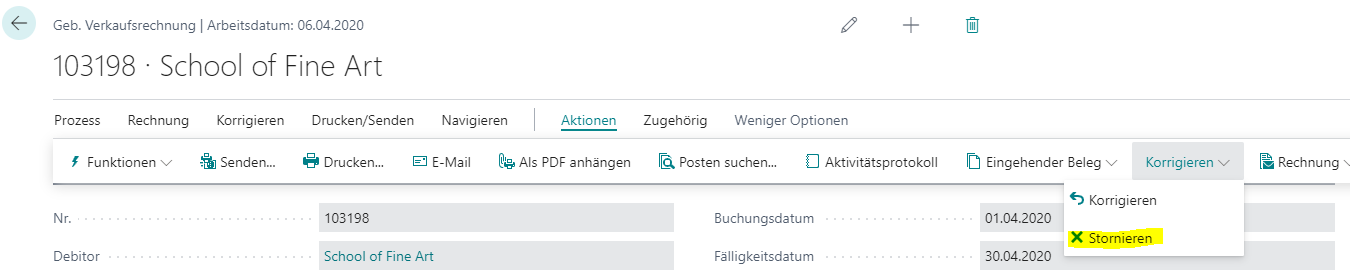
A dialog box then opens with the information that an adjustment sales credit note is automatically created and posted to cancel the originally posted sales invoice.
Correct posted sales invoice:
Use the Sales field to select the Sales invoices issued from.
Alternatively, select the magnifying glass symbol and enter the search term booked Sales invoice in.

Select the sales invoice to be corrected.
In the field Actions the sub-item "Correct". Select the field "Correct" from.
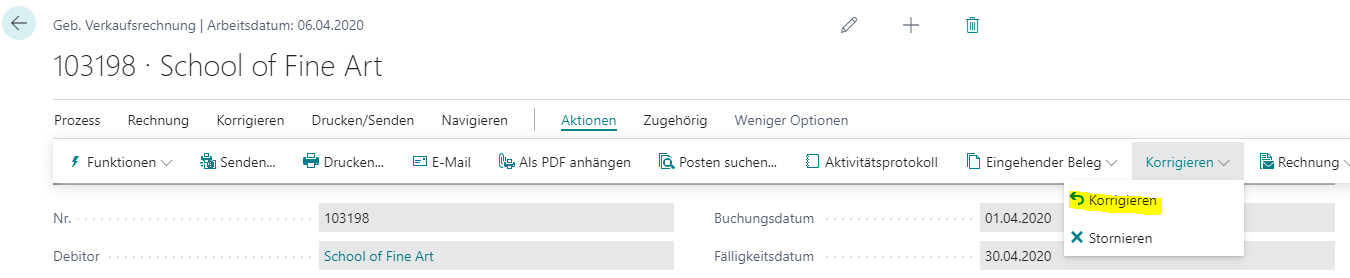
A dialog box opens with the information that the invoice was posted from a purchase order. The purchase order is canceled and a new invoice opens, which you can copy with the data from the canceled document.
The sales credit note is created and posted automatically. The originally posted sales invoice is canceled.
Creation of a sales credit note:
If a sales invoice has already been partially or fully paid, you can no longer correct or cancel it. In this case, you must create the sales credit note manually in order to cancel the sale and refund it to the customer.
Use the Sales field to select the Sales invoices issued from.
Alternatively, select the magnifying glass symbol and enter the search term posted sales invoice in.
Select the sales invoice for which you want to create a correction credit note.
Select Correct, Create correction credit note.
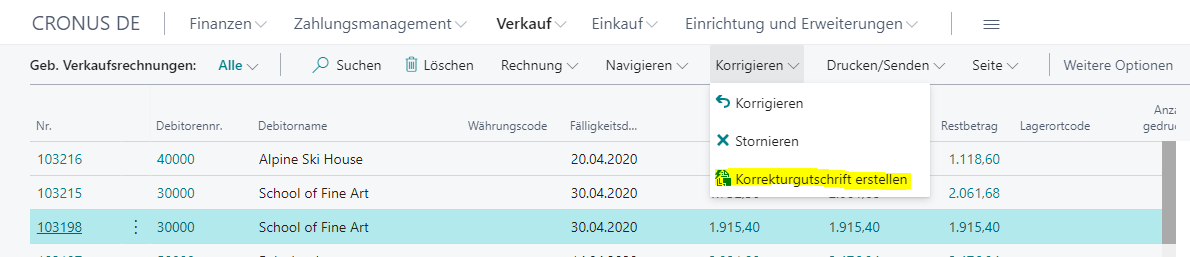
Edit the items to be refunded or the amount to be credited in the lines accordingly.
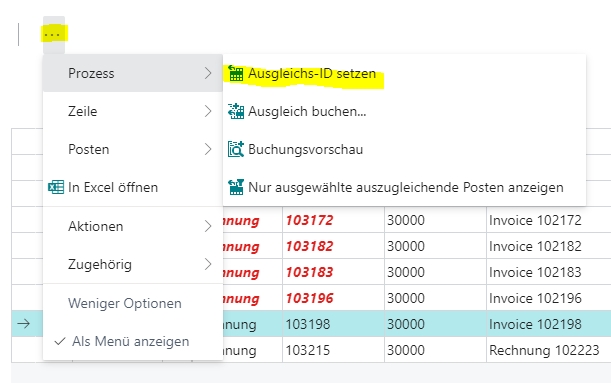
Use the field Actions the point Balancing items from.
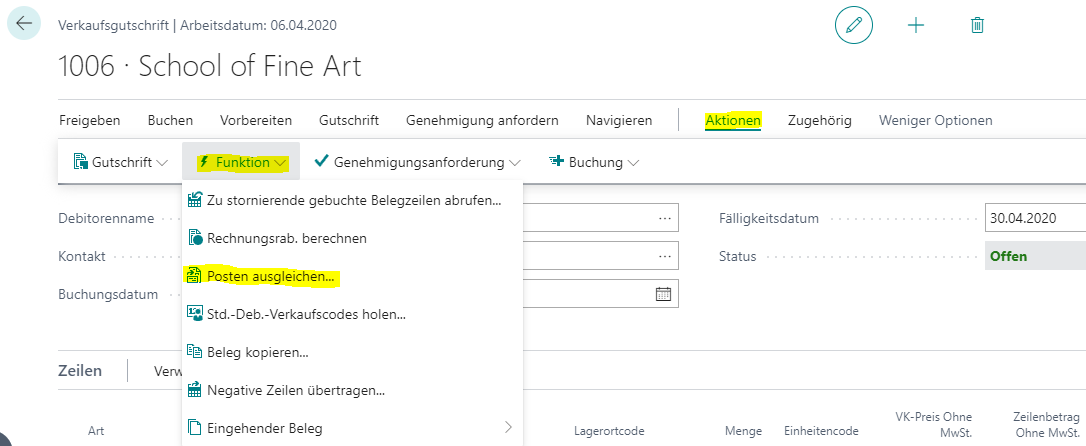
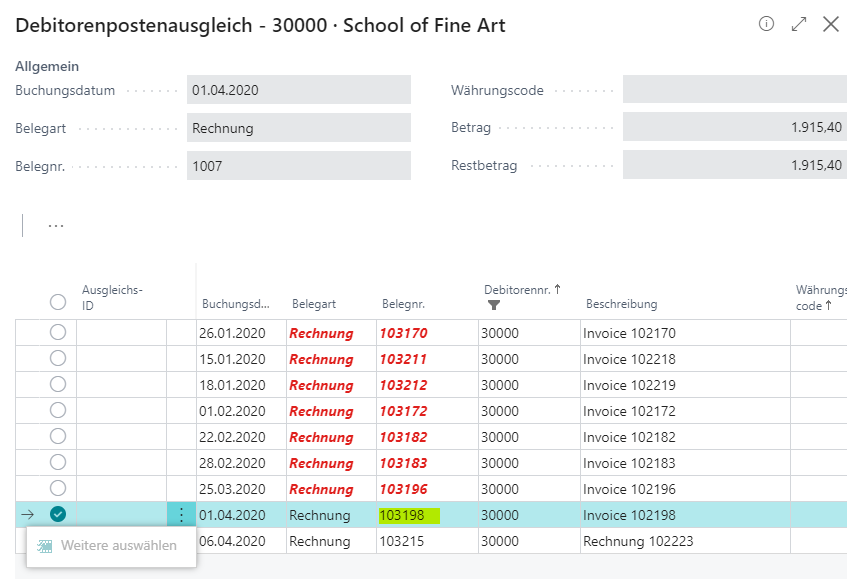
Select the line with the posted sales document that you want to assign to the sales credit memo and select Equalization ID set.
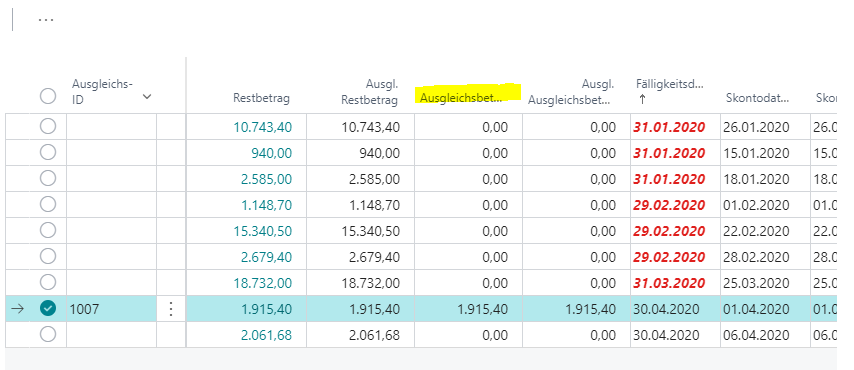
In the field Equalization amount only enter an amount that you wish to offset if this is less than the original amount.
At the bottom of the page, you can see the total amount to cancel all items involved if the value in the Balance is zero.
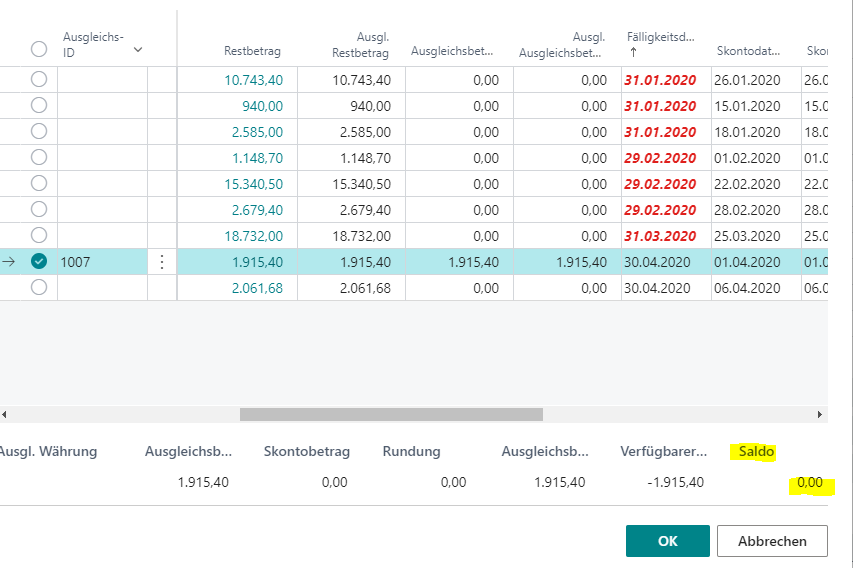
Select the button OK.
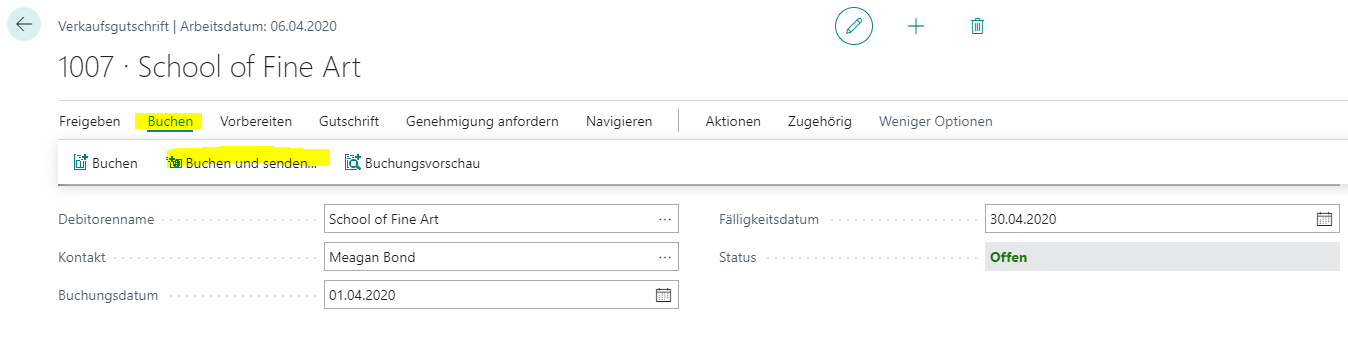
Select the action Booking and sending from
Are you interested in creating a sales credit note in Business Central or do you have any further questions? Please contact us by telephone at +49 (89) 21 111 848 or by e-mail to vertrieb@br-ag.com