In our March newsletter, we already reported on how you can create a sales offer in Business Central in our How-to series.
The sales offer can be used as a preliminary draft of a sales order in which item descriptions, the price and other sales conditions are defined.
In today's how-to series, we would like to show you how to create a new Sales order and the creation of a sales order from an existing offer.
New sales order creation:
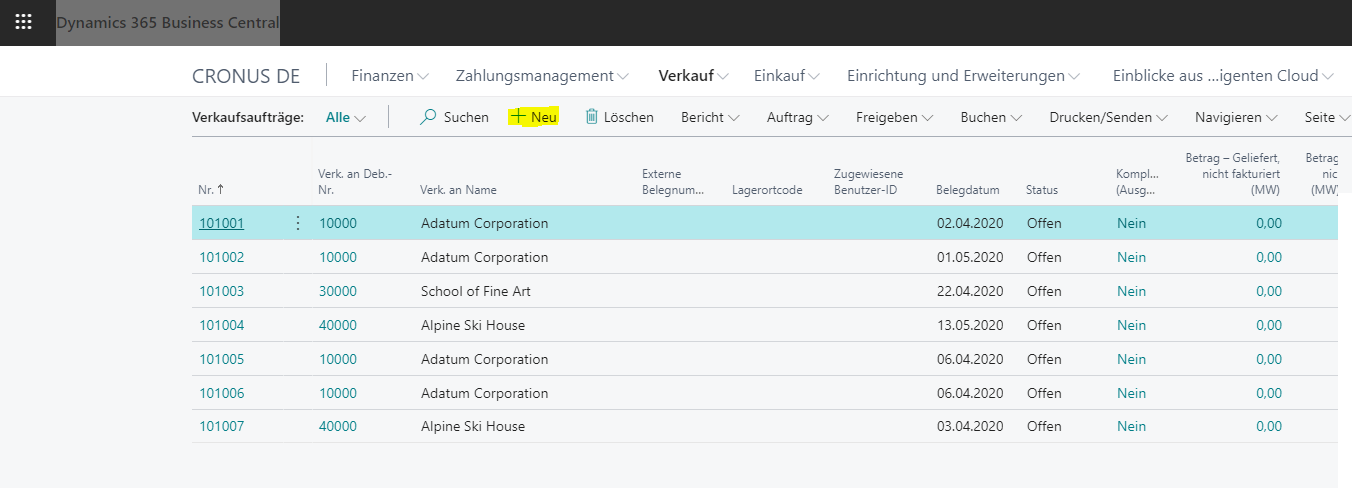
Select under the item Sale the field Sales orders from.

About the field New create a new sales order.
In the field Debtor enter the name of an existing debtor.
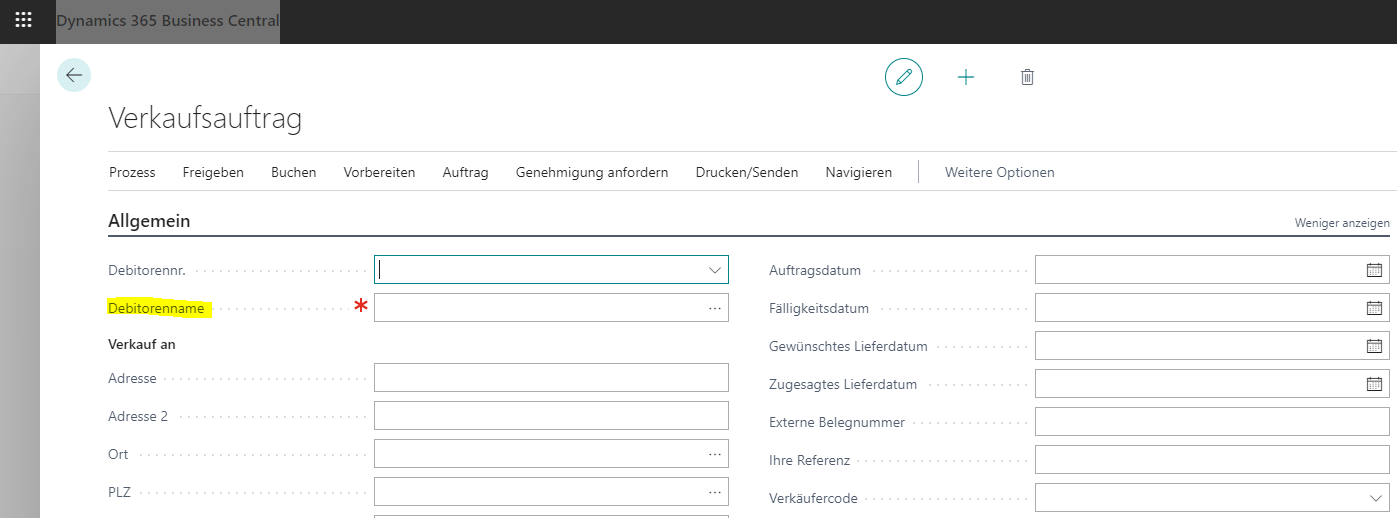
Now fill in the fields on the page Sales order as required.
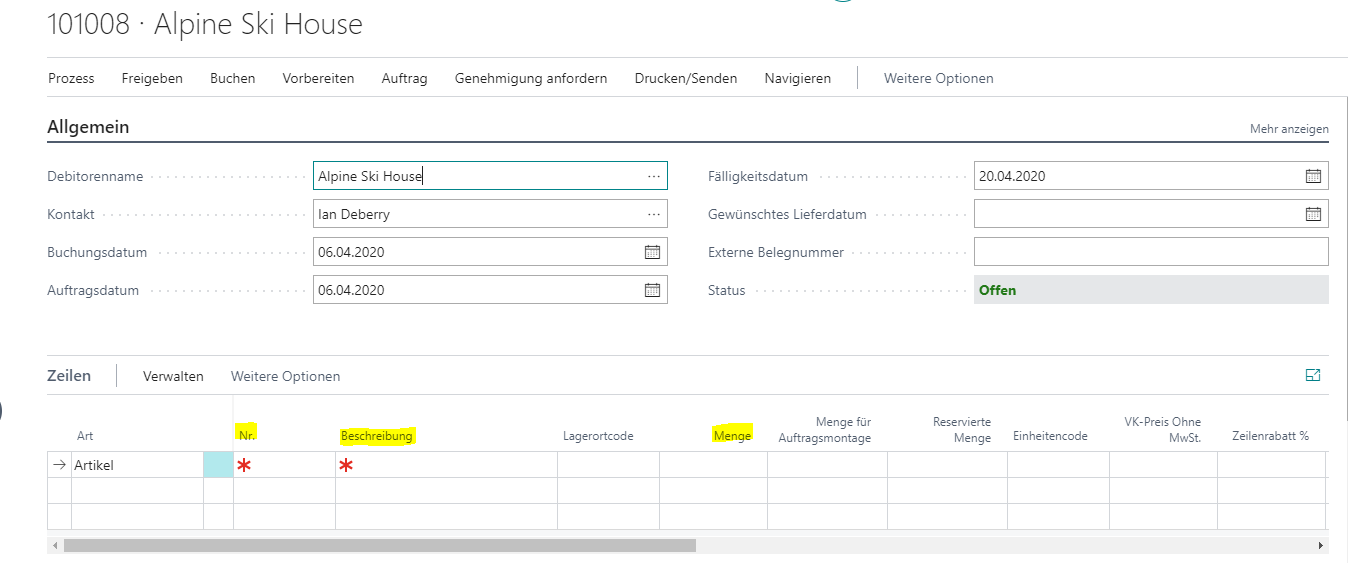
In the next step, you can already fill in the sales offer lines with stock items or services.
In the information register Lines In the Article field, select the Number of a stock item or service. In the field Quantity enter the number of items to be sold.
Under the item Invoice details you can choose whether you want the prices including or excluding VAT would like to have shown.
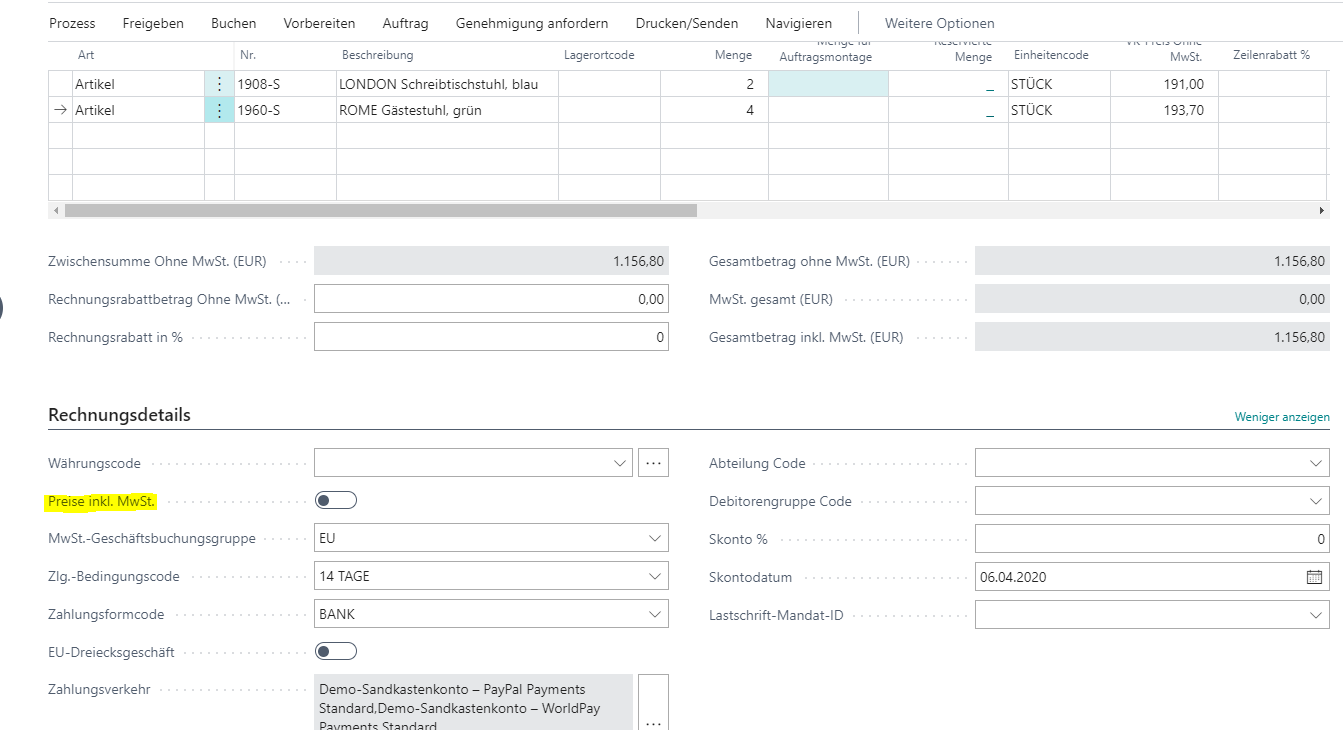
About the field Line discount % you can enter a percentage. The value is displayed at the same time in the Line amount updated accordingly.
In addition, under the item Invoice discount in % deposit a percentage rate. The discount applies to the entire invoice.
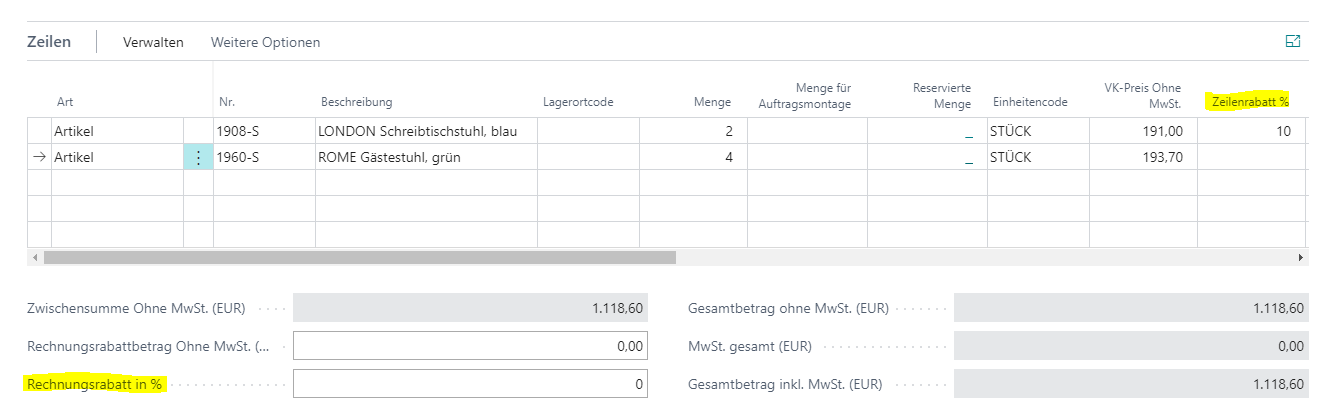
Repeat the steps described for each additional item you want to add to the Sales order would like to assign.
If you only want to deliver part of the order quantity, enter the quantity in the Quantity for shipping in. The value is also entered in the Quantity to be invoiced copied.
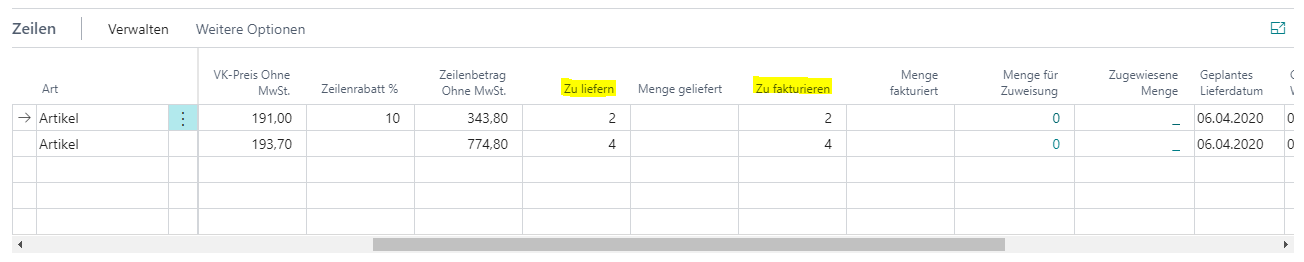
You can also invoice only part of the order quantity. In this case, enter the following in the Quantity for invoicing the corresponding value.
Note: The quantity to be invoiced cannot be greater than the value in the Quantity delivered.
When the sales offer lines are executed, select the action Booking and sending from.
The desired method of the customer for receiving receipts is displayed in the Posting and sending confirmation dialog box. You can change the sending method using the Send voucher to button.
Creation of sales order from existing offer:
If you have already created a quote in Business Central that you would like to convert into a sales order, you can do this with just a few clicks.
Open the sales offer.
Select under the item Actions the field Create - Create order.
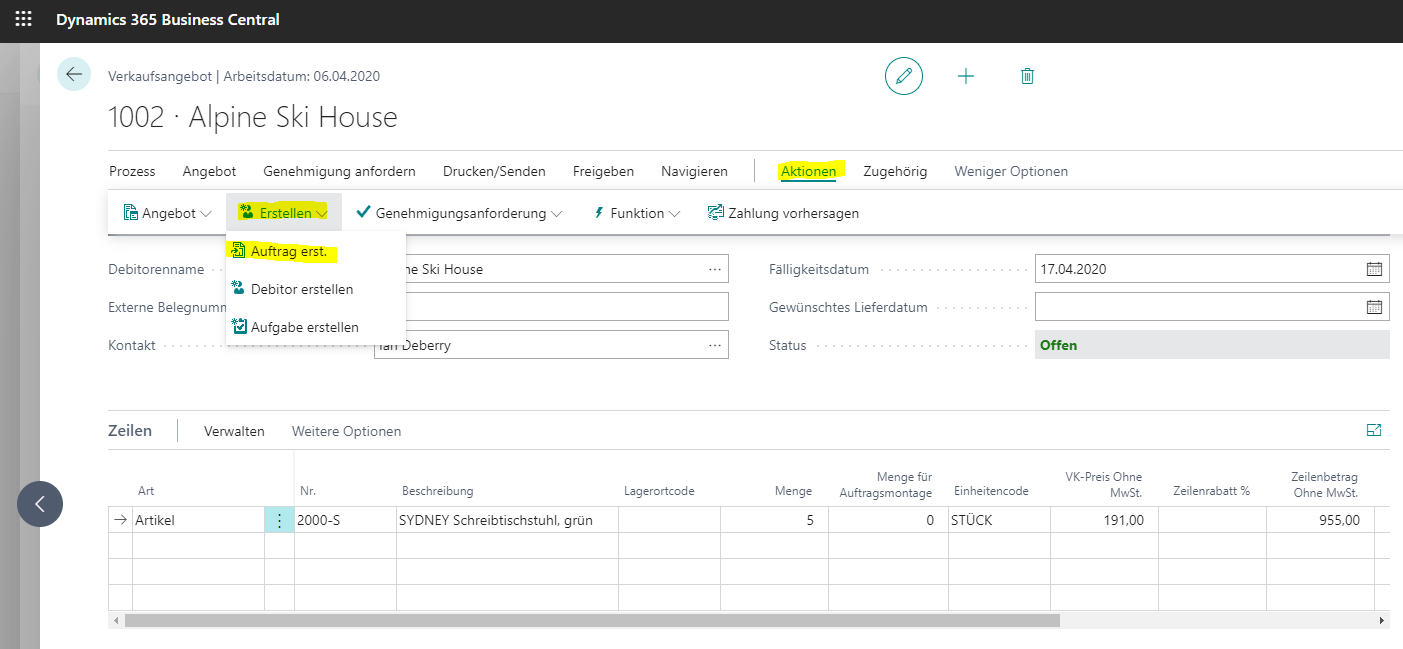
The newly created Sales order with all the data you have already entered in the sales offer.
You can now proceed with the steps described above.
Have we aroused your interest?
We would be happy to tell you more about Microsoft Dynamics 365 Business Central! Please call 089 - 211 11 848 or send an e-mail to vertrieb@br-ag.com