In our April newsletter, we informed you about the management of User profiles in Dynamics 365 Business Central.
Based on the administration of users and the associated business roles, we would like to give you tips today on how to manage your Views can be customized in Business Central.
Tip 1: Pin the navigation bar to the start menu
To do this, click on the pin symbol in the start bar

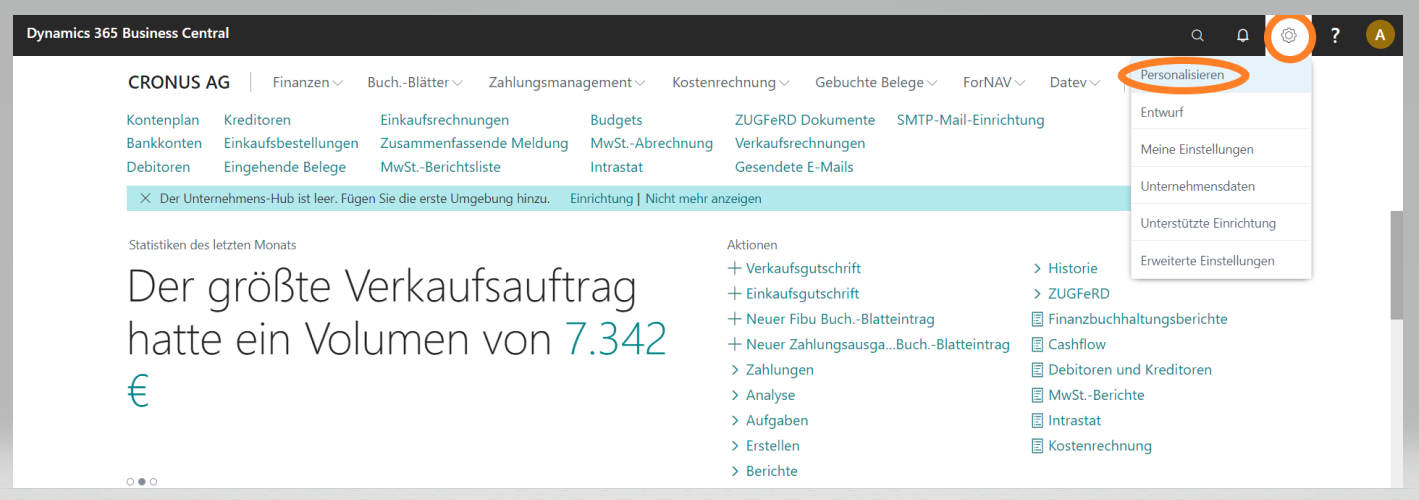
Tip 2: Customize your start page
To do this, click on the gear wheel and then on 'Personalize'
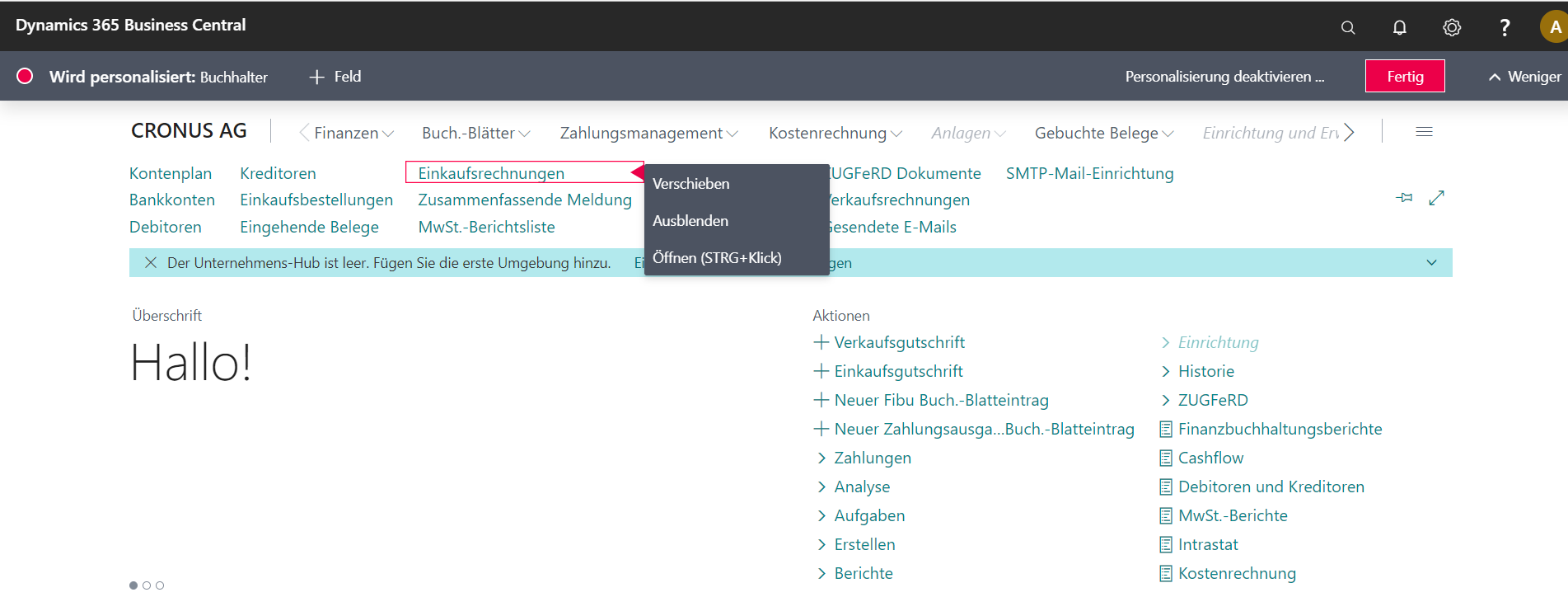
As soon as you have activated the personalization mode, you can move or hide areas as you wish.
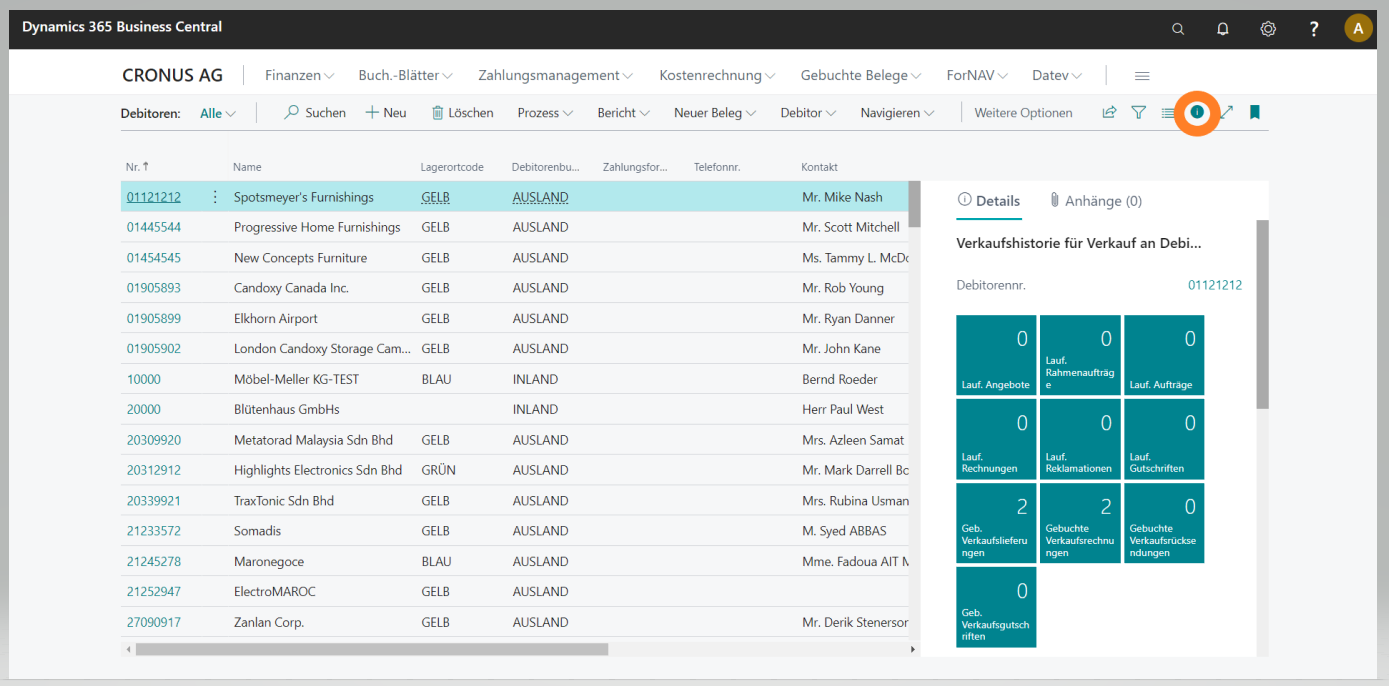
Tip 3: Show and hide the info box area
To do this, click on the info symbol in the navigation bar
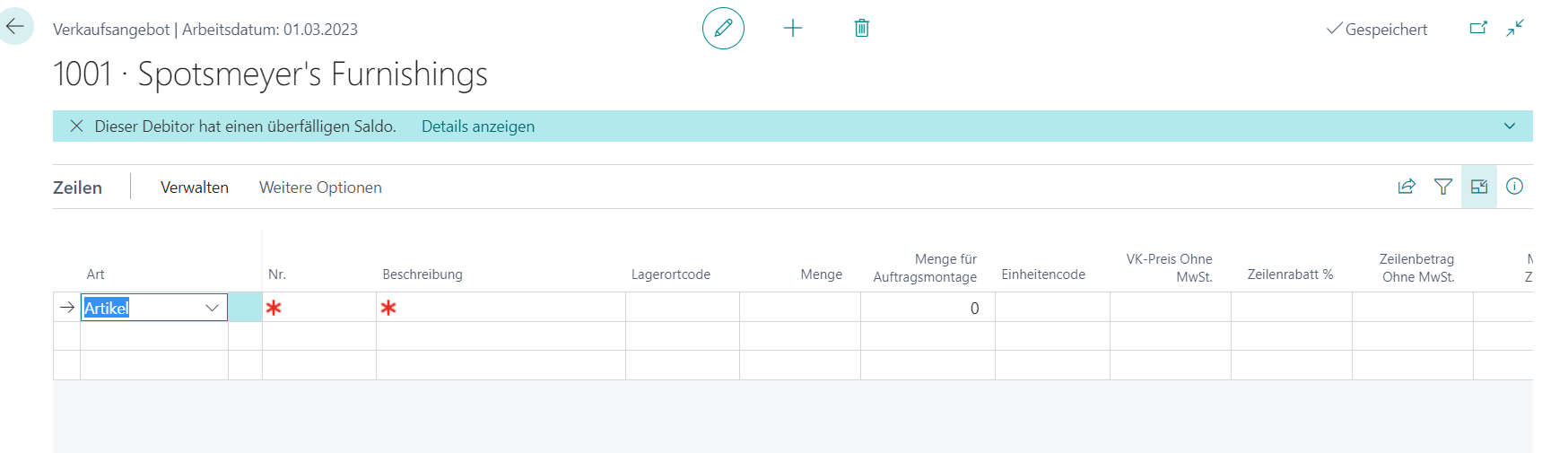
Tip 4: Activate focus mode in the line area
To enlarge the line area of a page, the focus mode can be activated
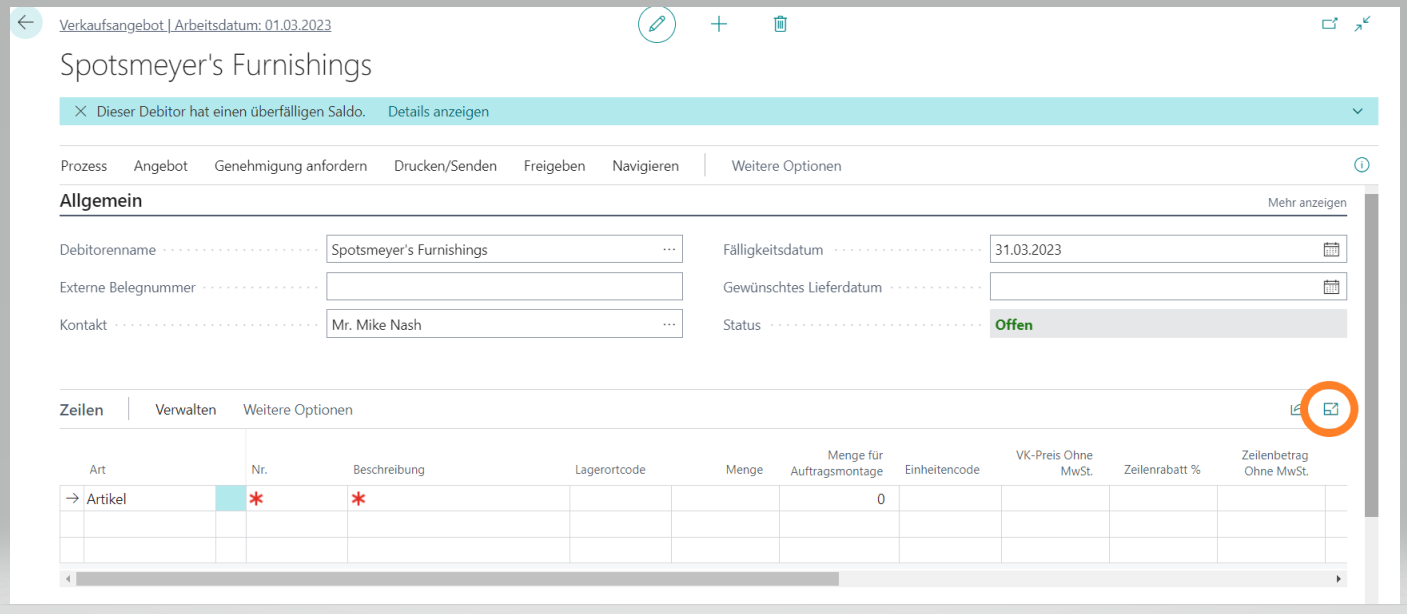
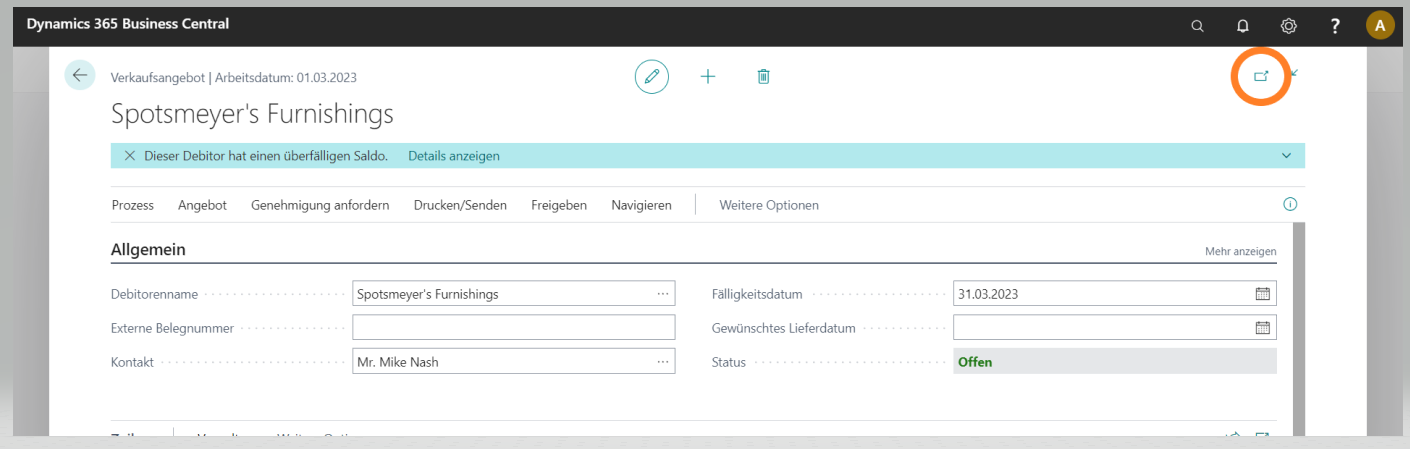
Or the page can be opened in a 'new window'
Do you have questions about Dynamics 365 Business Central?
Get in touch with us at 089 - 211 11 848 or by e-mail to vertrieb@br-ag.com